Starting from version 1.6.4 we added Retrieval-augmented generation (RAG) support to chatbot. This technology is used to create a chat bot that will respond to your visitors’ questions related to your website. How RAG feature works? Plugin allows to upload content of selected posts or pages from your website into external vector database using their API and generate search database. This vector database is able to do semantic search inside uploaded content. You can attach vector database to chatbot. When visitors ask questions, this chatbot sends a query to the vector database instead of sending it directly to ChatGPT API. The vector database returns content that matches the user’s query back to your site. The content found by the vector database is then sent to ChatGPT along with the user’s query. If the vector database does not find any information that is related to the user’s request, you have the option to stop sending the request to ChatGPT and return a message informing the client about the missing content. This way, you can achieve 2 goals:
- Limit sending any requests to ChatGPT that are not related to website content.
- Only send ChatGPT content from your website that is relevant to the user’s request. This allows you to reduce the cost of using the chat completion API.
Detailed description of how RAG function works.
Above we briefly explained how RAG works. But in reality, this function works more complexly. It includes the following steps:
- You upload some of pages and posts from your website into vector database as explained in How to SET UP feature section.
- User asks question to ChatBot.
- Plugin takes question and sends it to OpenAI embedding API endpoint.
- Open AI Embedding model transforms request from words to vector of numbers. This procedure is called embedding.
- Embedding (vector of numbers) is sent back to plugin.
- Now Embedding (vector of numbers) is sent to vector database via its API. Currently plugin supports Pinecone Vector database. We are going to add other Vector databases in future.
- Vector database is doing semantic search for relevant posts/pages among content, uploaded by you in step 1.
- Vector database sends found content back toy plugin.
- Plugin sends user’s request alongside found content in step 7 to OpenAI conversational model.
- OpenAI conversational model uses found content as context for answering user’s question.
How to SET UP RAG feature.
Step 1.
Open account at pinecone . You can think of Pinecone as a external search database for your bot. Create empty Index there, set the dimension to 1536, and choose cosine for the metric.
Step 1.2.
Once your account is created, go to the pinecone dashboard.
Step 1.3.
Create empty Index there

Step 1.4.
Provide a unique name for your index, set the dimension to 1536, and choose cosine for the metric. Click Create Index. Your index is now created!

Step 2.
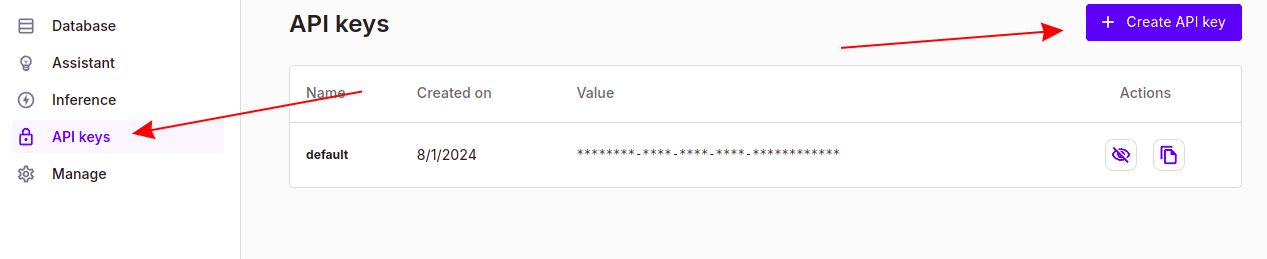
Click on the API Keys option in the left side menu to generate your API key. Make sure to copy this key as you will need it later.
Step 3.
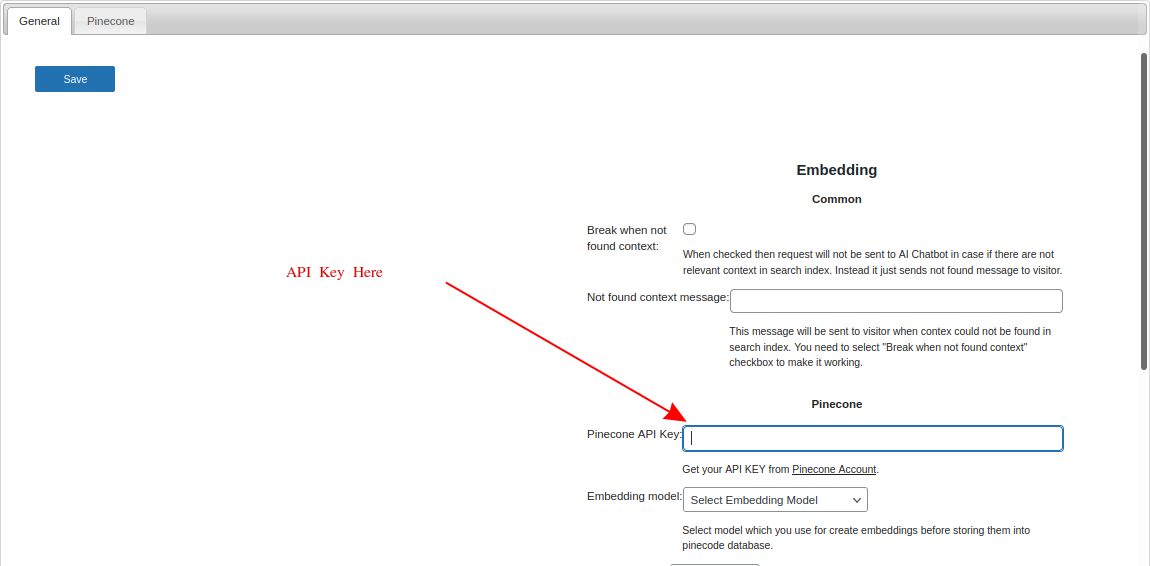
Open RAG wp-admin page of S2B AI Assistant
Step 4.
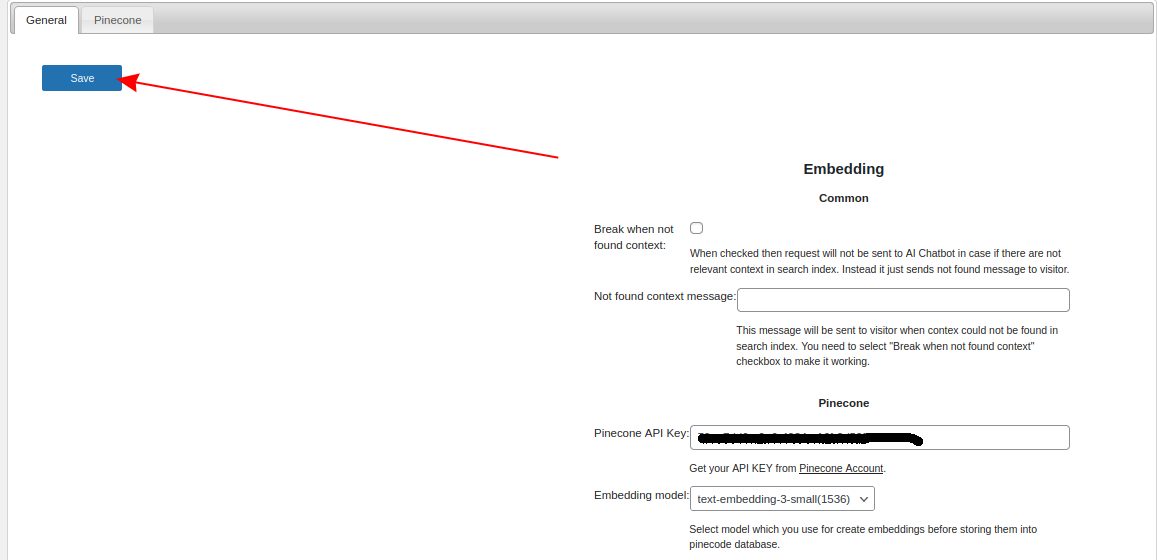
Fill field ‘Pinecone API Key:’ with pinecone API key
Step 5.
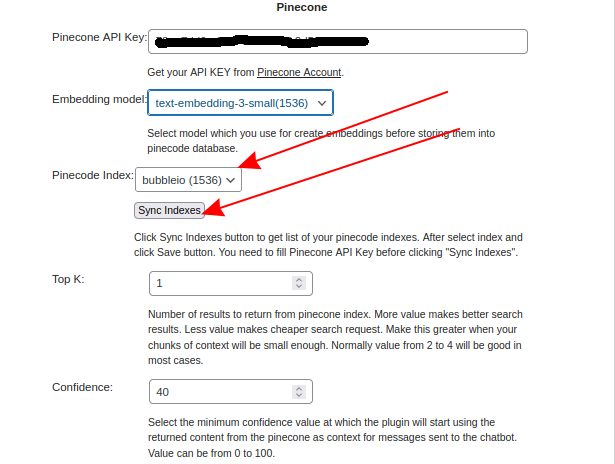
Click Sync indexes button. It should add your Pinecode Index in Pinecode Index field. Select it in dropdown box.
Step 6.
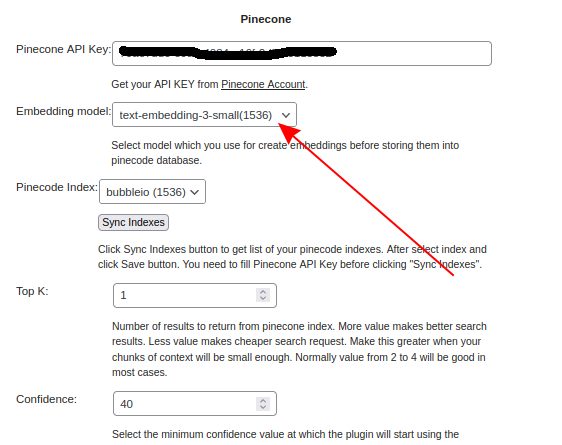
Select Embedding model with 1536 dimension.
Step 7.
Select other parameter on this page and click Save button.
Step 8.
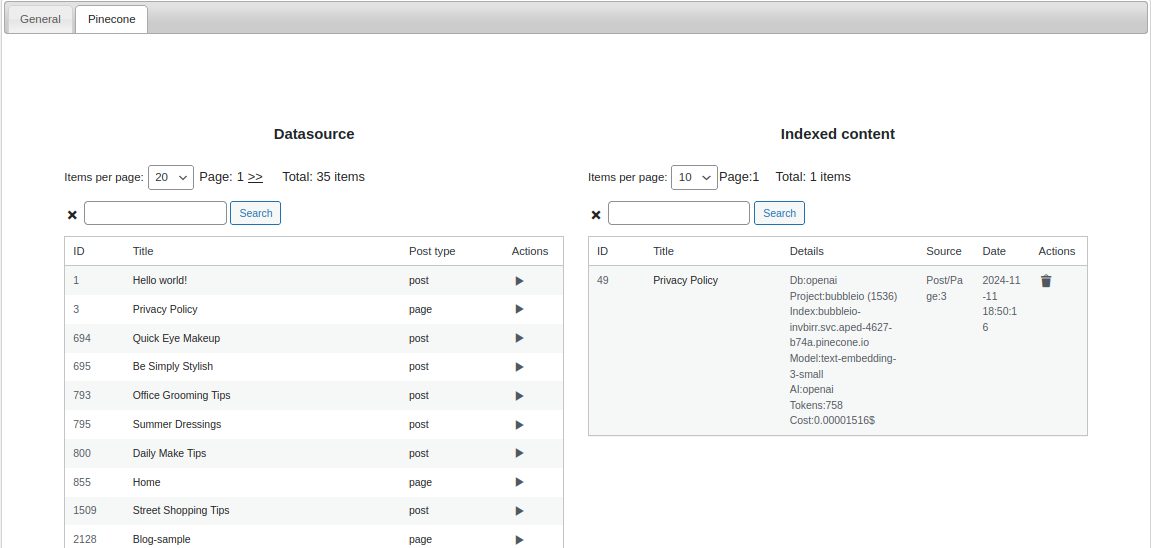
Go to Pinecone tab and select content pages or posts from left list and add them into right list.
Step 9.
Open ChatBot wp-admin page of S2B AI Assistant plugin.

Step 10.
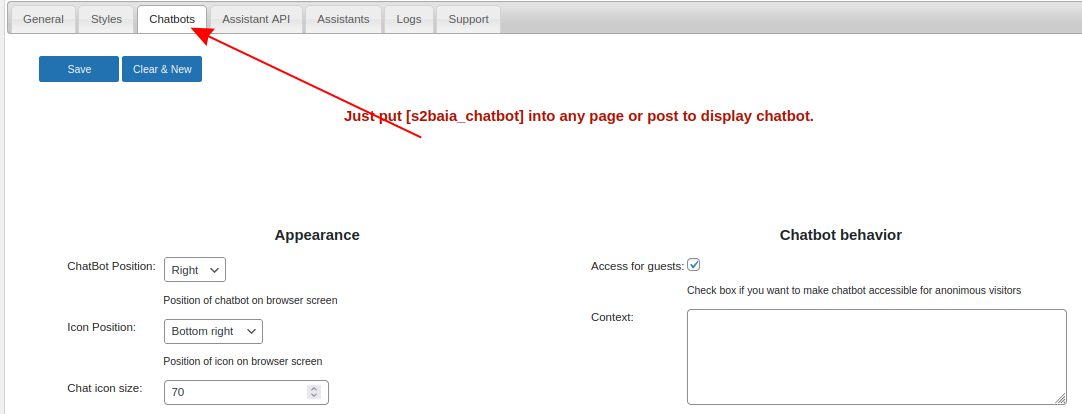
Go to ‘Chatbots’ tab and create new chatbot or select some among created before.
Step 11.
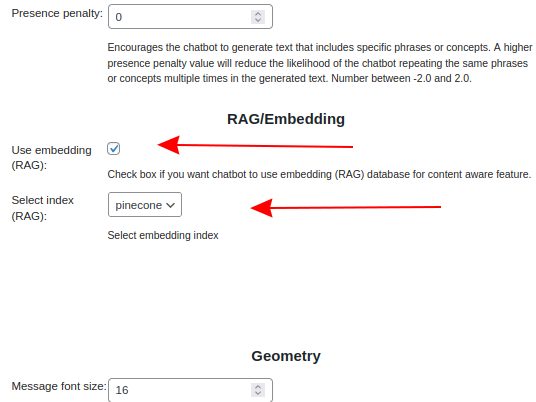
Make checked Use embedding (RAG) checkbox and select pinecone in Select index (RAG) field in chatbot configuration.
Step 12.
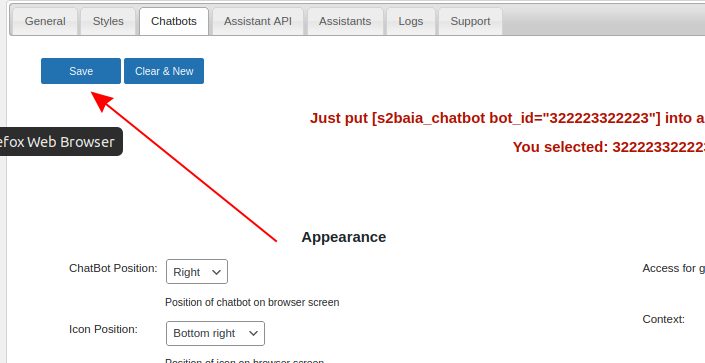
Click Save button
Step 13.
Put chatbot’s shortcode to any page or post on your website
Step 14.
Try to use